Builds well
Compact, recognizable structures inside 64×64×64: towers, huts, small monuments, gateways, simple domes. Clear silhouettes come out cleanest, because the planner settles the shape before placing a single block.
Security check
Crafting your blueprint…
Usually 20–40 seconds
Daily builds used up!
Free crafting resets tomorrow. Come back for another build!
Block Dreamer — keep building there. Your prompt goes with you. Keep buildingYou're on the list!
Describing a structure and placing it in your world is six steps. Nothing to install, and the example chips let you try the whole flow before you spend a generation:
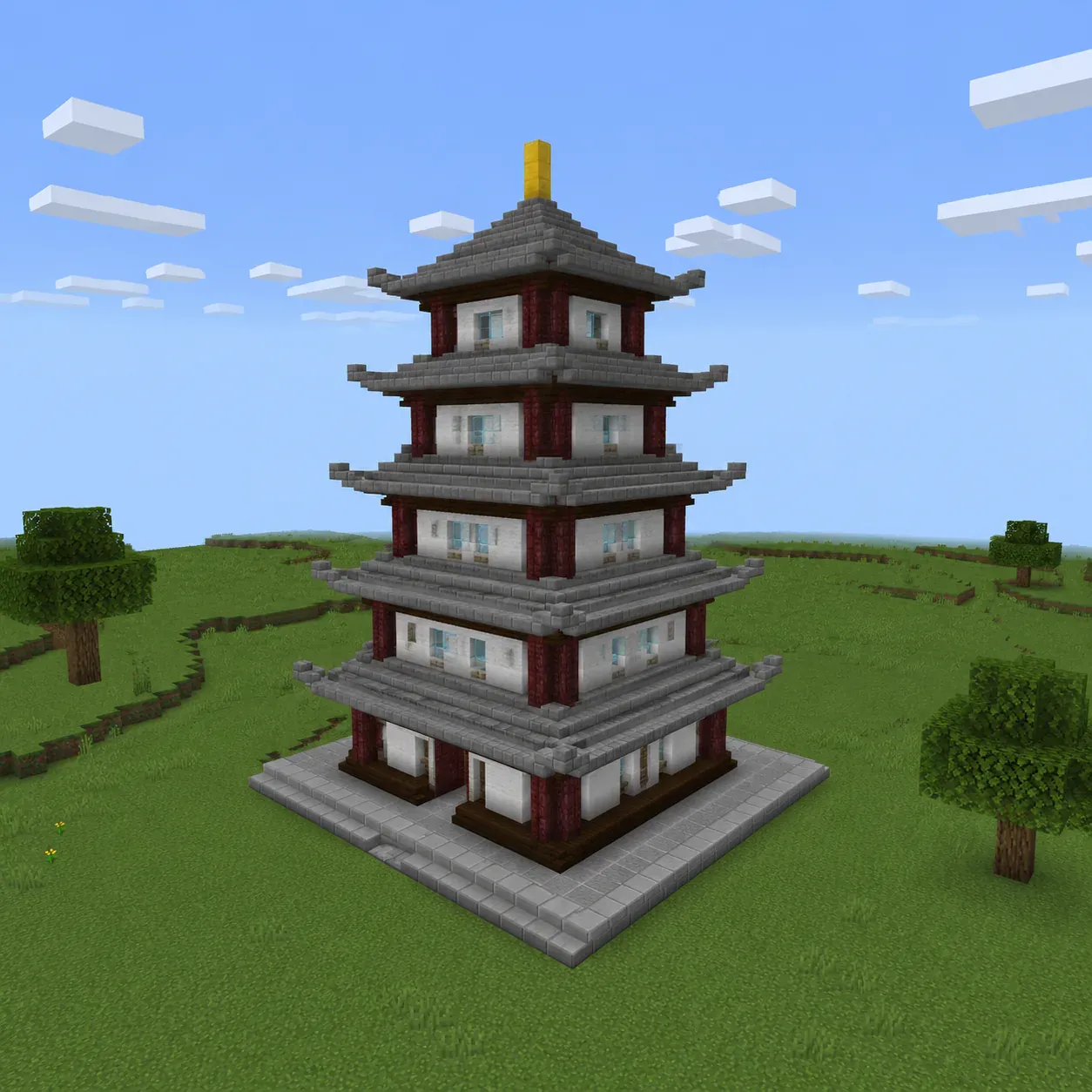
The example-chip pagoda, placed from the exported .mcfunction
Form, material, one or two details. "A round stone watchtower with a glowing top" beats "epic castle". One structure per run.
A planning pass locks the silhouette and palette, then an assembly pass places blocks inside a 64×64×64 bound.
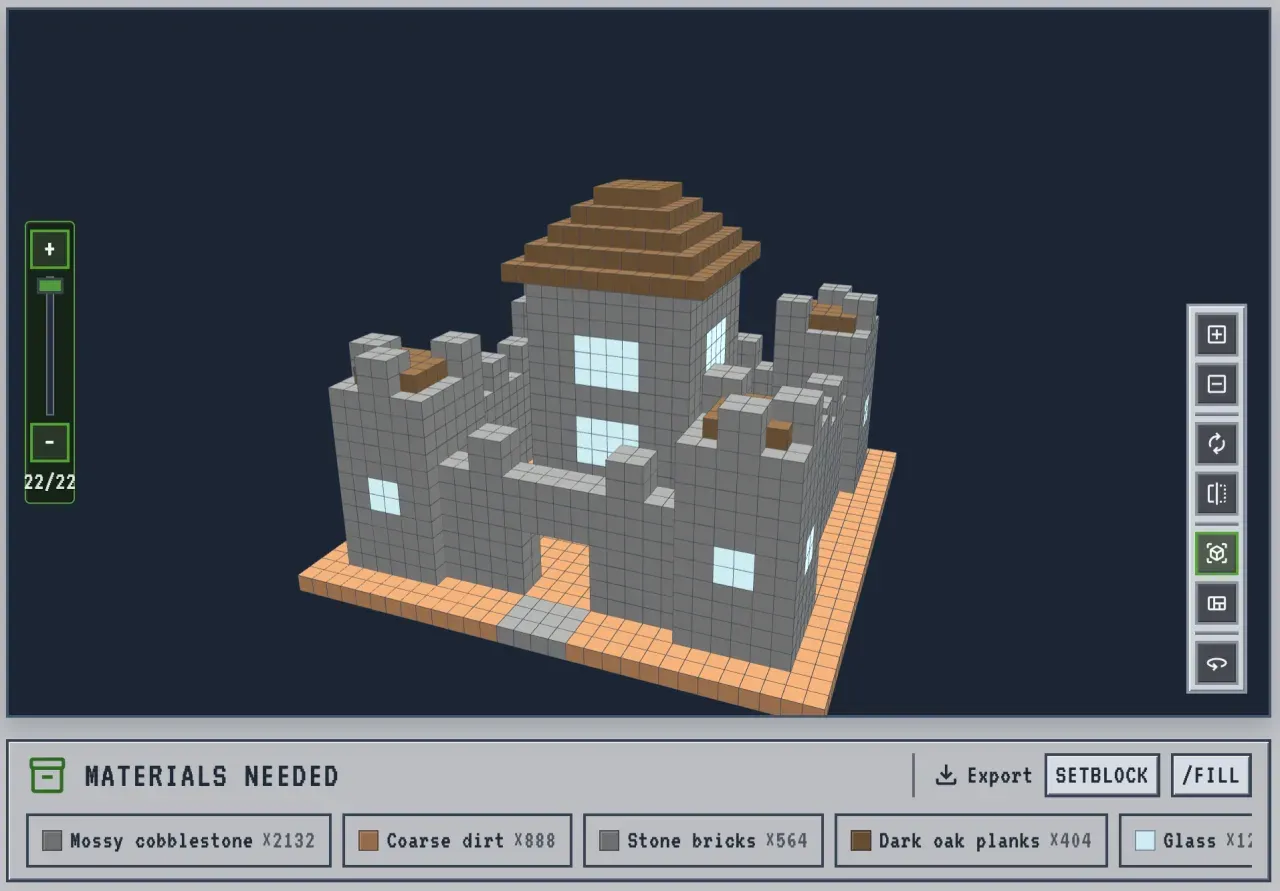
Rotate and zoom the voxel model to judge the massing before you commit to gathering anything.
Strip the build to one Y-level at a time — the same view you build from by hand, and the fastest way to spot overhangs.
One chip per block type with exact counts, biggest first. Hover a chip to break it into stacks of 64 before you leave storage.
Download setblock or /fill as a vanilla
.mcfunction, or just build it from the layer view.
Want the same walkthrough with screenshots and worked prompts? Follow the full AI build generator guide.
A Minecraft AI build generator turns a plain-English description into a structure you can place, not a picture of one. Most "AI Minecraft" tools return an image; this one returns block data — which is why it can also price the build and export commands.
The generator runs two passes. The first reasons about shape and picks a
palette; the second fills the voxel grid block by block, bounded to
64×64×64 (about 16,000 blocks) so results stay coherent and fast. What
comes back is a 3D preview you can orbit, a
layer-by-layer blueprint, a
material list with exact counts, and a downloadable
vanilla .mcfunction. No mod, no signup, and no WorldEdit
needed to place it on Java.
Scope is to this tool what diameter is to the shape generators: pick it right and the first result is usable. The generator is strongest on compact, readable geometry that fits the 64×64×64 envelope.
| Ask for | Result | Why |
|---|---|---|
| One structure Best | Clean, placeable | Towers, huts, temples, gateways, small monuments — clear geometry the planner can reason about |
| A named style | Usually good | "Japanese pagoda", "medieval keep" — a style word steers the palette better than a list of adjectives |
| A whole village | Comes back miniature | Everything is scaled into one 64-block box, so a settlement arrives as a diorama |
| Interiors, redstone | Out of scope | The output is a shell of blocks; furniture and working contraptions are not planned for |
| Characters, animals, statues | Not supported yet | Faces, creatures and likenesses don't come out recognizable at block scale — ask for a building instead |
| Torches, stairs, slabs, doors | Swapped for full blocks | Builds use full blocks only: roofs are stepped, openings are carved, and light comes from glowstone or sea lanterns |
| A precise circle or dome | Use the shape tools | When you need exact geometry rather than a designed structure, the dedicated generators are the right tool |
Compact, recognizable structures inside 64×64×64: towers, huts, small monuments, gateways, simple domes. Clear silhouettes come out cleanest, because the planner settles the shape before placing a single block.
Characters, animals, statues and real people; redstone contraptions, detailed interiors, terrain and megabuilds. City-scale prompts return as detailed miniatures. For one exact round shape rather than a whole structure, use the shape generators below.
Lead with the form — round, square, tiered, tall. The planner settles the silhouette before anything else, so that word does the most work.
Naming stone, dark oak and glass gives a coherent palette. Listing eight materials produces noise instead of contrast.
If a result is close, keep the prompt and adjust a single constraint — taller, lower roof, narrower base. Rewriting from scratch loses what already worked.
A castle and its village and a bridge all compete for the same 64 blocks. Generate them separately and place them together.
"Japanese pagoda" or "medieval keep" carries shape and palette at once. "Epic", "cool" and "amazing" carry neither.
The example chips load full results — preview, layers, materials and download — without spending a generation. Read their prompts as templates.
Plenty of tools will show you an AI picture of a Minecraft build. Far fewer hand you something you can actually place.
The export is a vanilla datapack function. Realms and servers that
block WorldEdit or Litematica still place it with one
/function command.
Orbit the full massing, then strip it to a single Y-level to hand-build on Bedrock or check overhangs before you start.
One chip per block type with counts and stacks of 64, so you gather once instead of running short halfway up.
Stuck on what to build? Every result below came from the prompt beneath it, and each one is loadable from the example chips above — no generation spent.
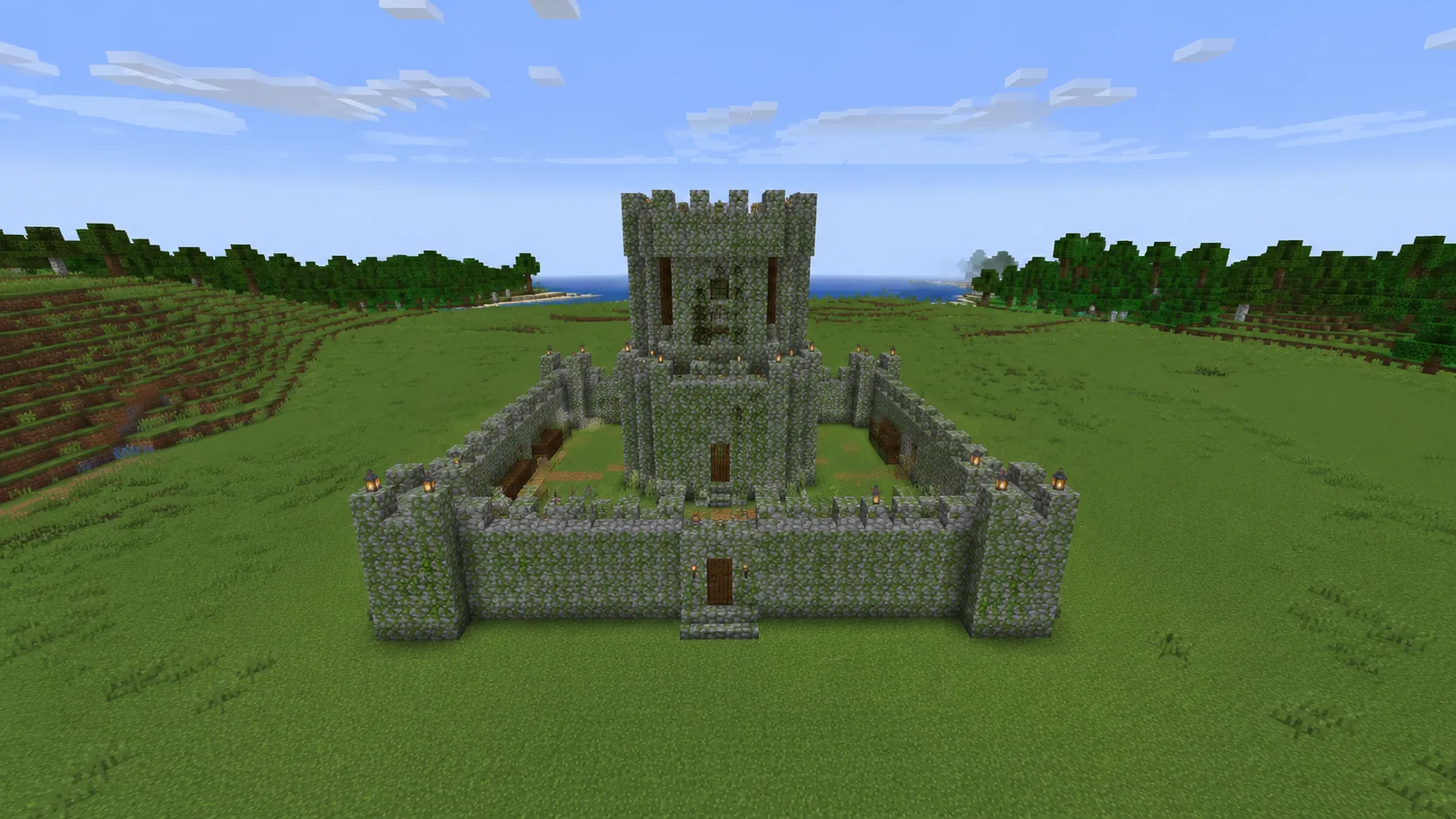
"A small medieval castle with mossy stone walls and a central keep" — a walled footprint with one tall element reads as a castle even at 30 blocks across.
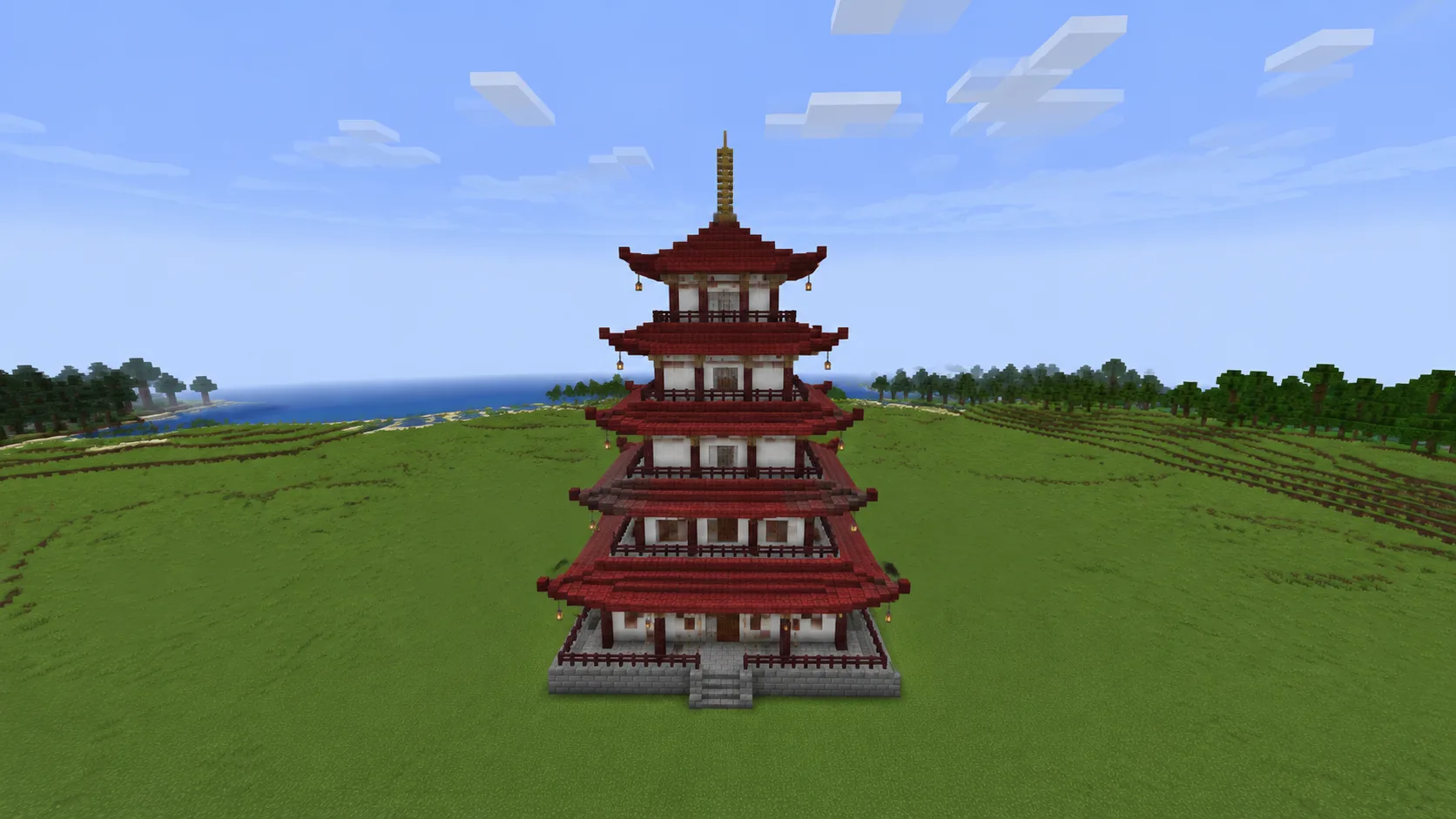
"A japanese pagoda with white walls and red roof tiers" — stacked tiers are ideal voxel geometry, and the style word sets the palette.
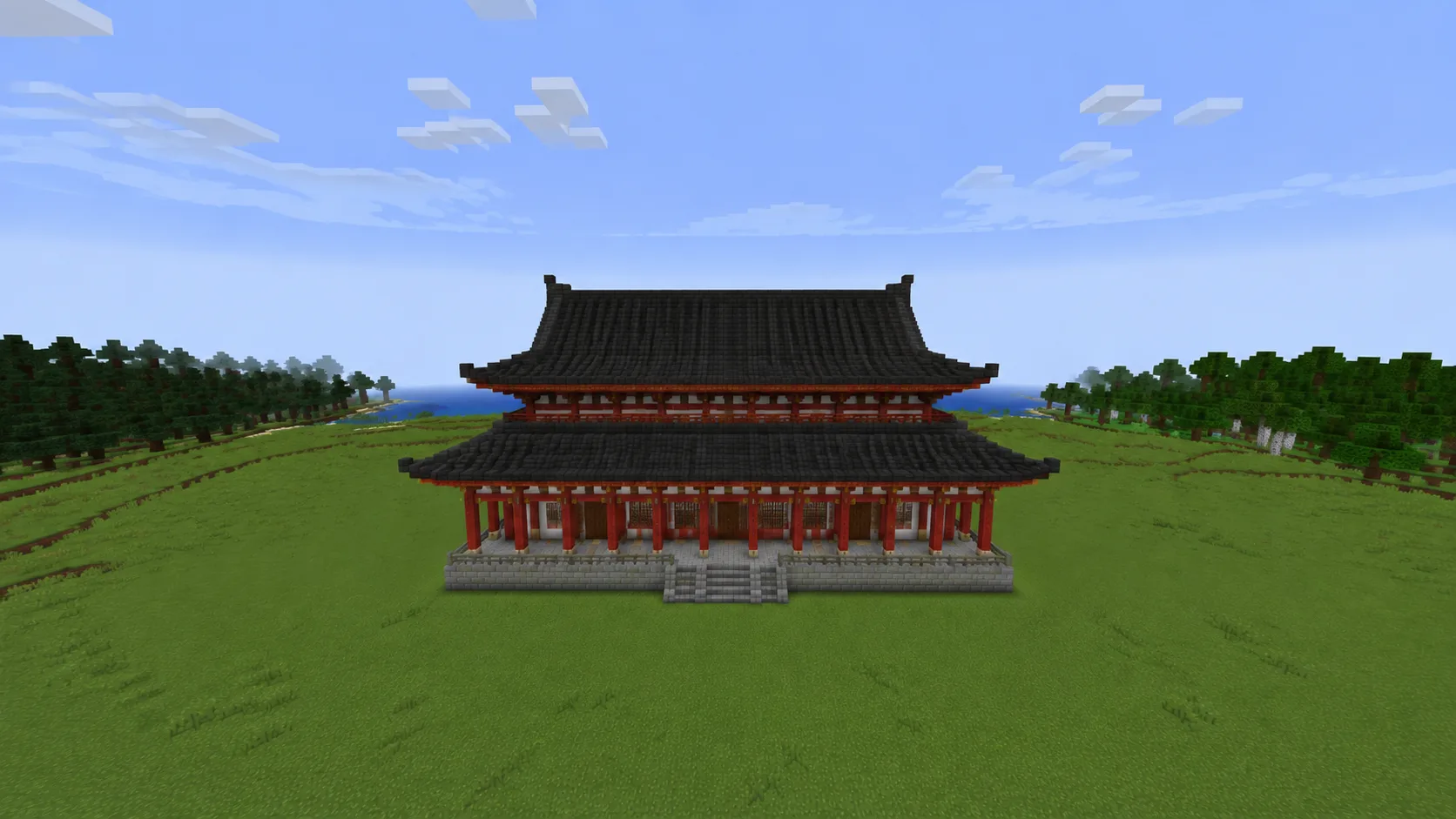
"A japanese temple with red pillars and dark tiered roofs" — naming two colours and one structural feature is usually enough.
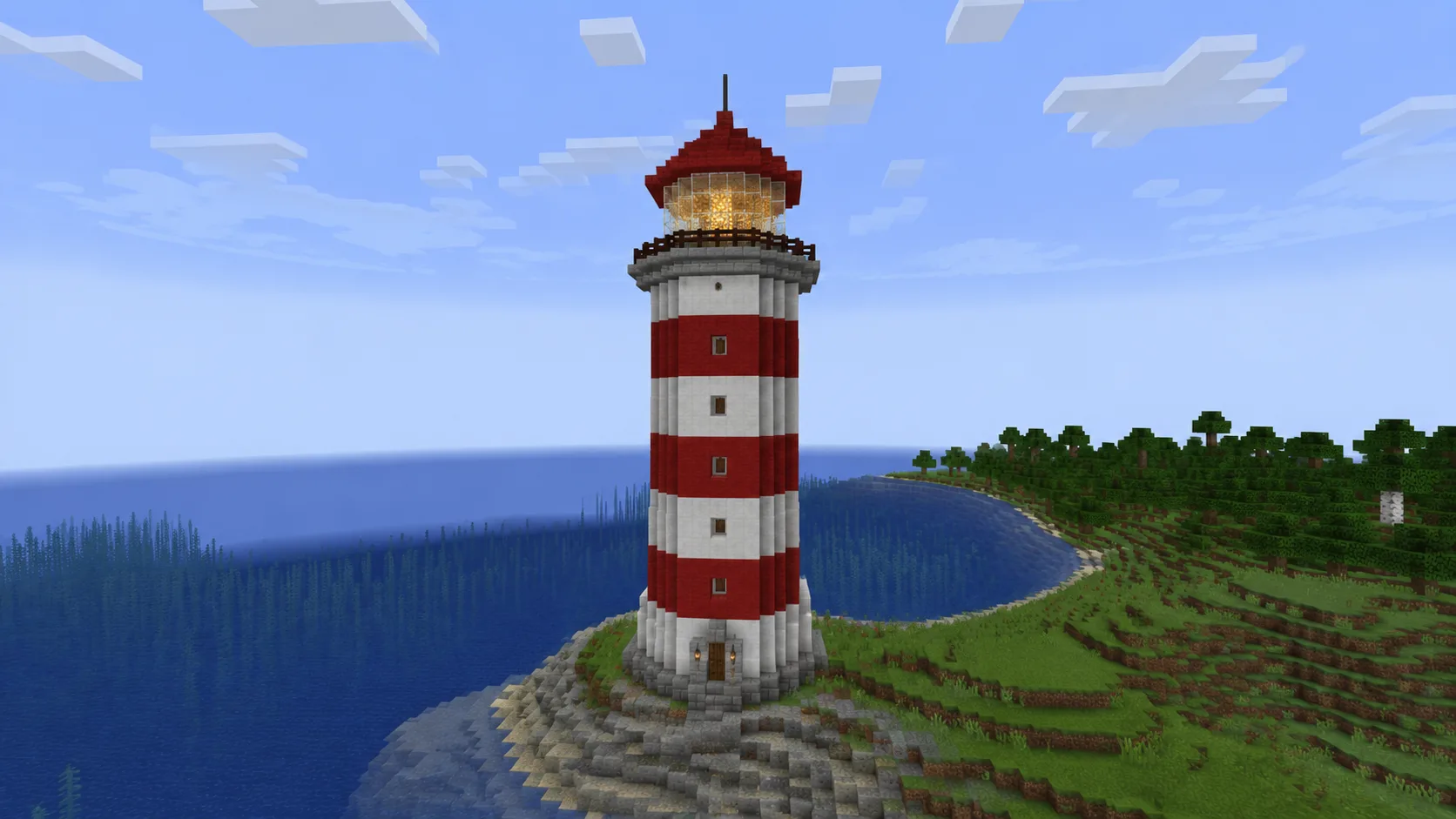
"A tall round lighthouse with a circular cross-section" — asking for round explicitly keeps the tower from coming back square.
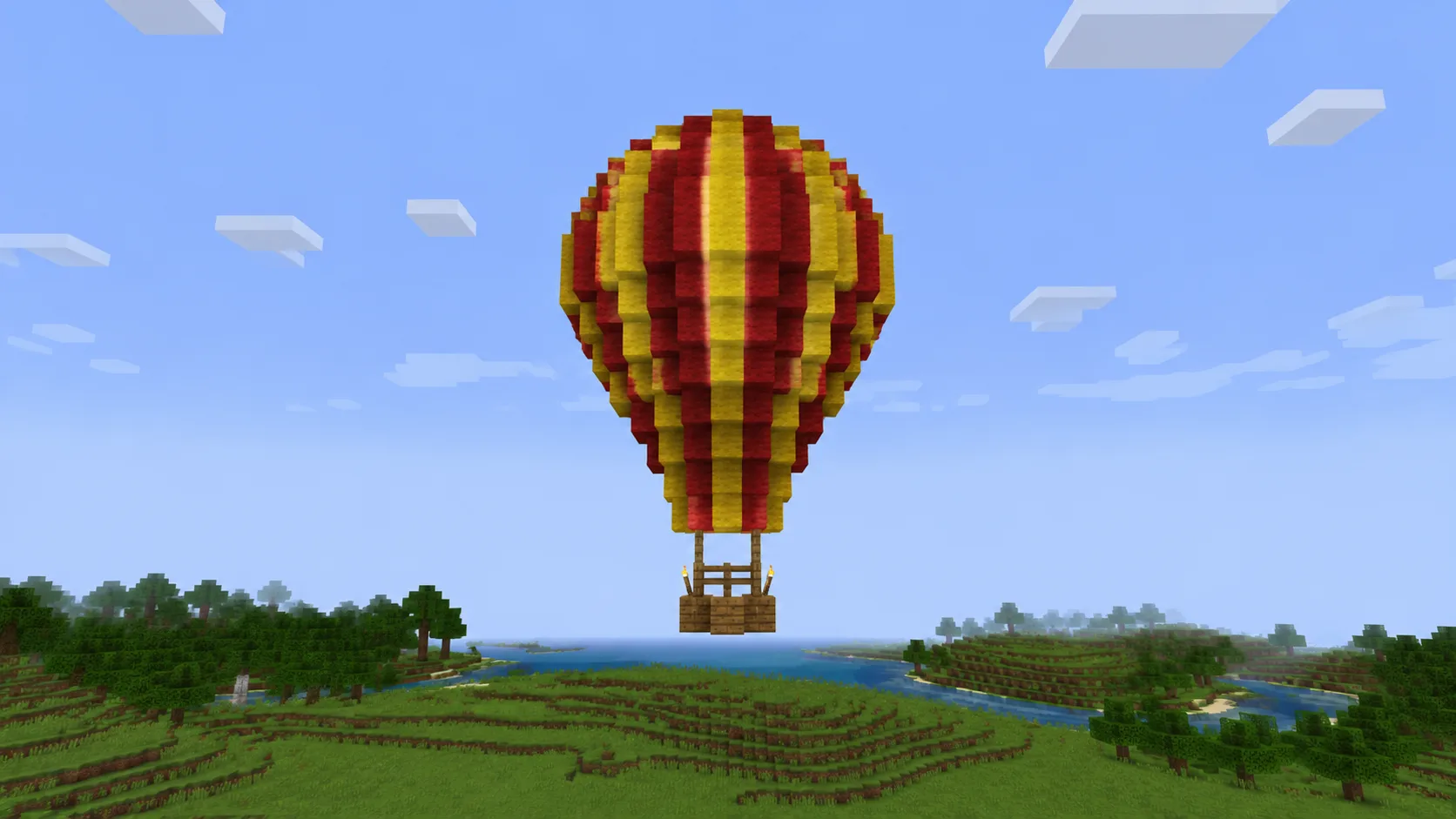
"A compact, symmetrical red and yellow pear-shaped balloon" — floating decor is where the 64-block bound stops mattering at all.
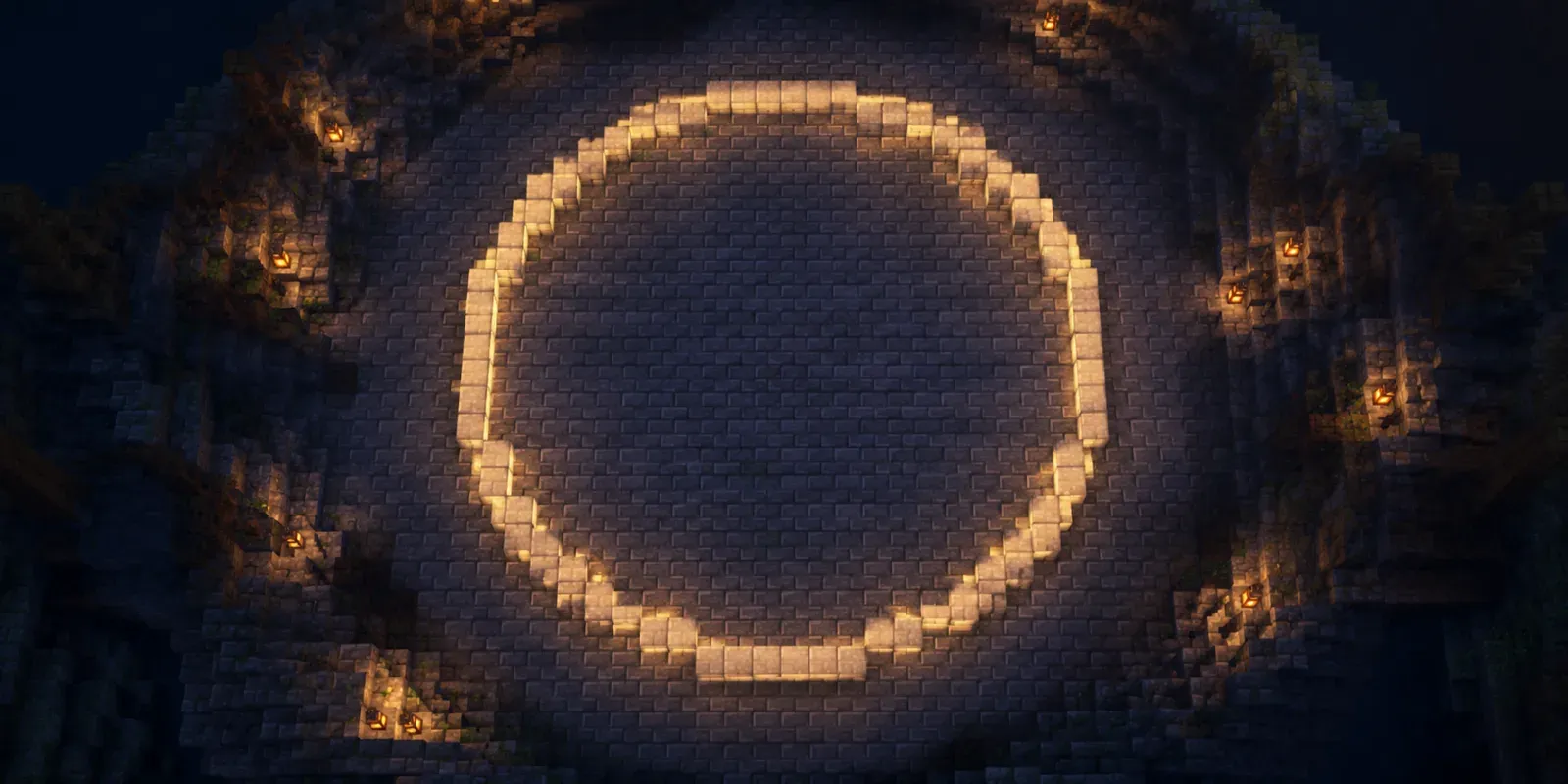 Tool
Tool Pixel-perfect flat circles and ellipses with exact diameter and fill.
Open tool → Tool
Tool Full 3D spheres from diameter 3 to 128, hollow or solid.
Open tool →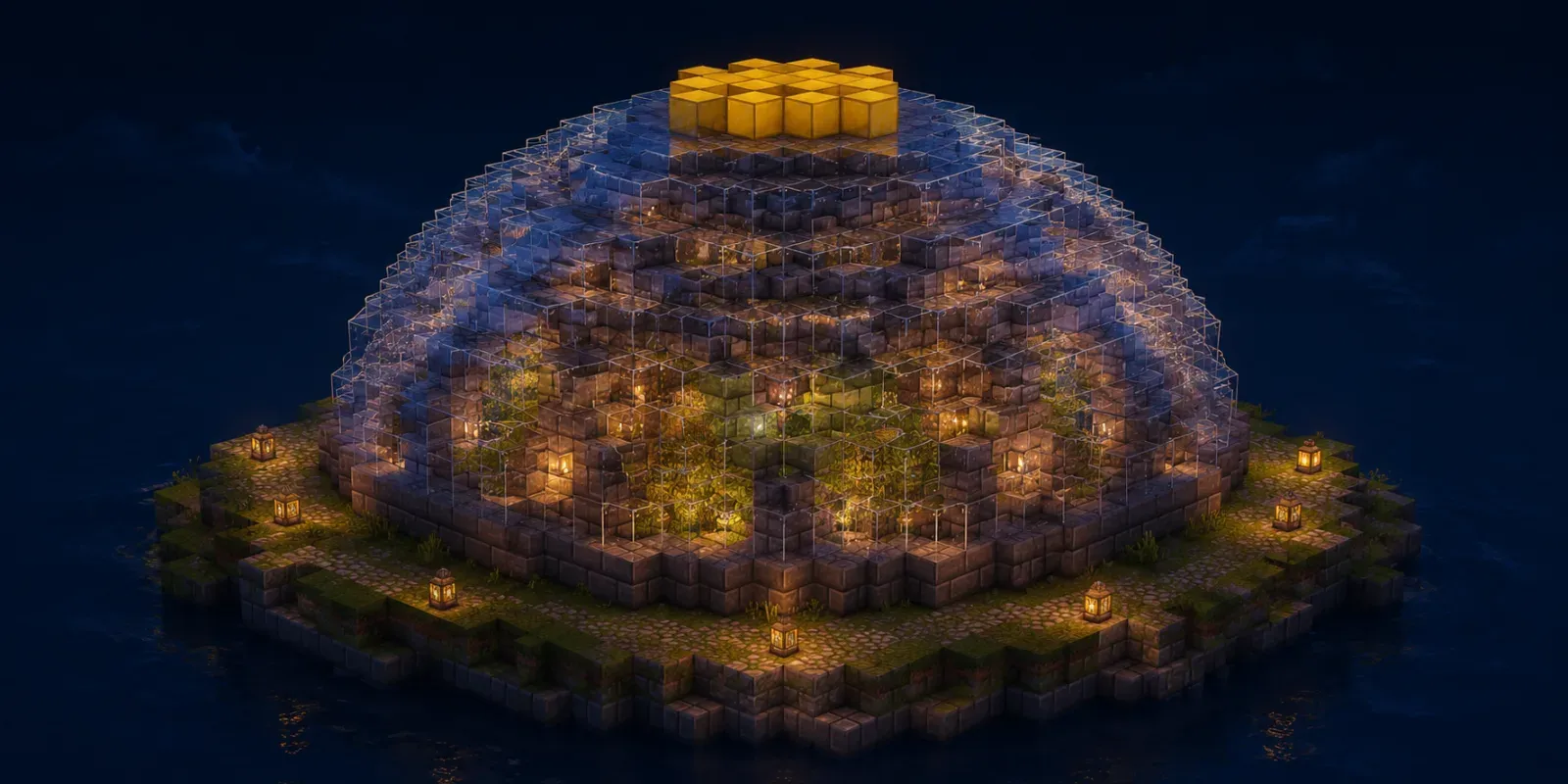 Tool
Tool Half-sphere roofs and observatories, ring by ring.
Open tool →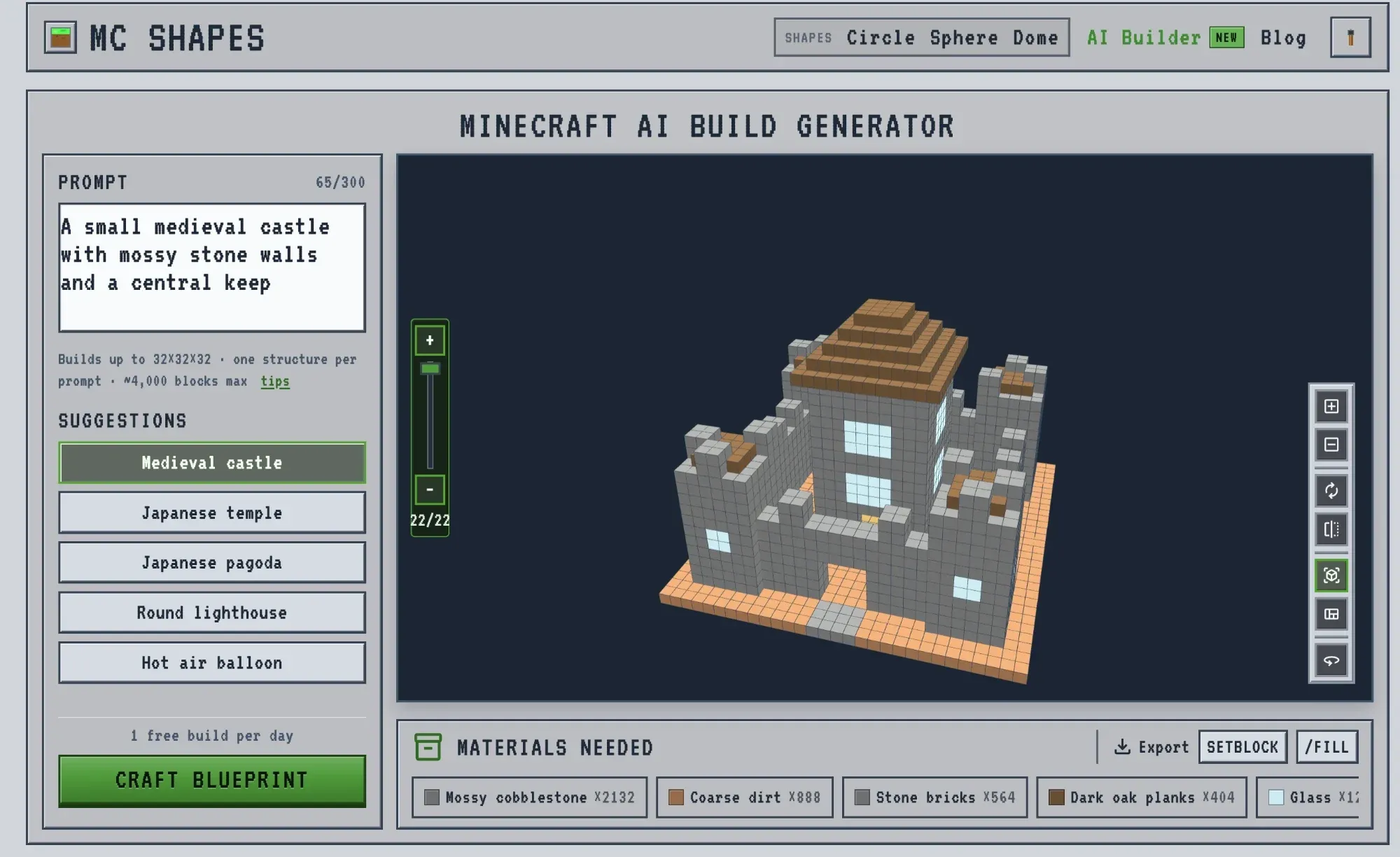 Guide
Guide The full walkthrough: prompts, layer view and placing the export.
Read guide →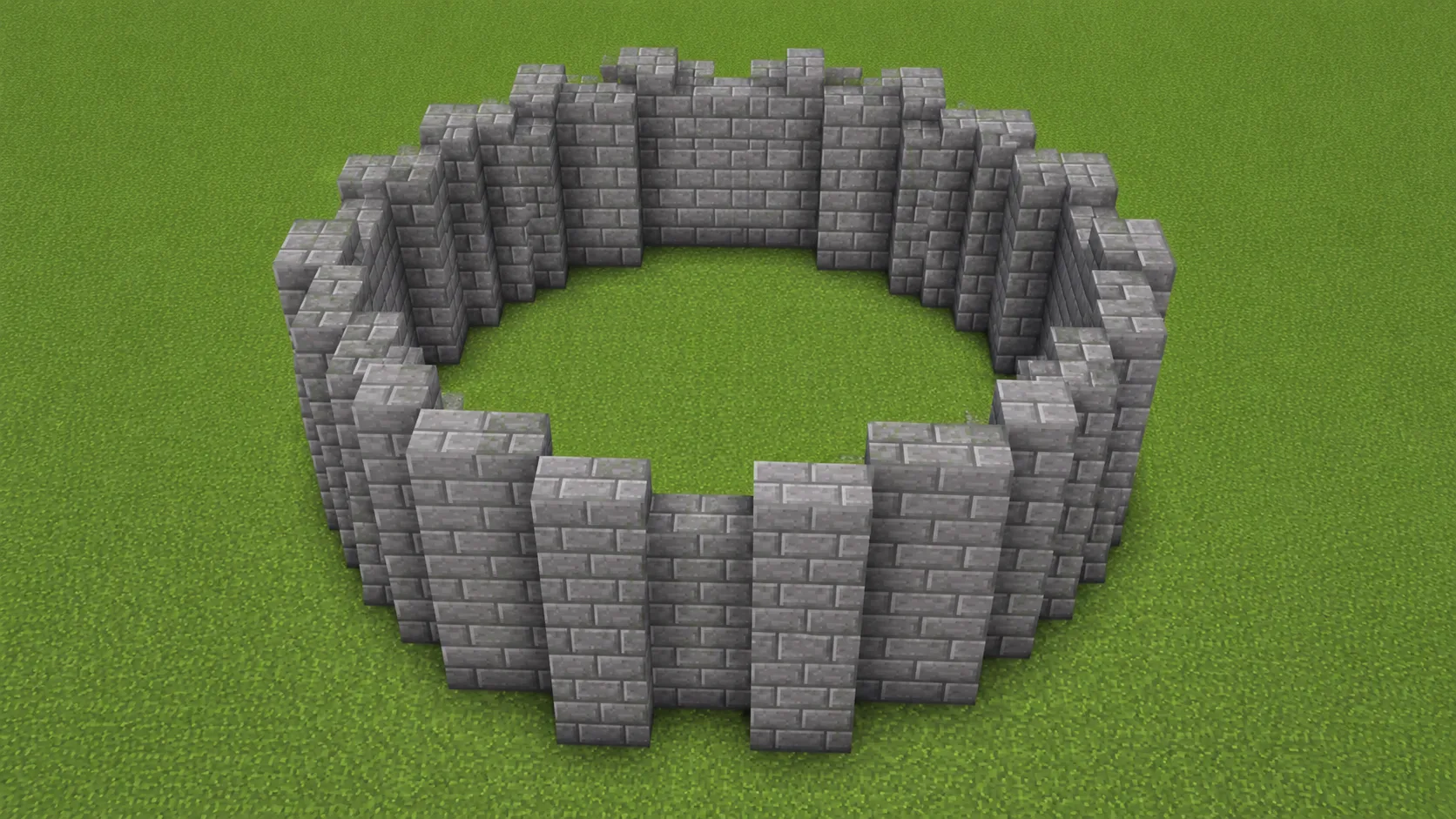 Guide
Guide Hand-build the round towers the AI sketches, at any scale.
Read guide →Did the blueprint work? Stuck? Tell us what you're building