You can hand-place a 9-block sphere. You cannot hand-place a 31-block one — not without tearing it down at least once first.
A circle is a single ring. A sphere is a stack of rings that all change size, and the layer where the curve steps inward is never quite where your eye expects. Miss one ring near the top and the whole ball looks dented from across the map. Here is how to build a clean sphere one layer at a time, without the teardown. If all you actually need is a flat ring or floor, build that first with how to make a circle in Minecraft — a sphere is the harder, 3D version of the same problem.
Table of contents
Open Table of contents
- Why a Sphere Punishes Guesswork More Than a Circle
- Step 1: Pick a Diameter That Doesn’t Look Like a Potato
- Step 2: Go Hollow Unless It’s Tiny
- Step 3: Place Each Layer With the Ghost-Layer Method
- Turn the Same Sphere Into a Dome, Hemisphere, or Cylinder
- When You Don’t Need a Generator at All
- Start Building
Why a Sphere Punishes Guesswork More Than a Circle
With a flat circle you only count one curve. With a sphere, every horizontal layer is a different circle, and two things go wrong at once:
- The diameter changes each layer. Near the equator the rings barely shrink; near the poles they collapse fast. Guess the rate wrong and the ball turns into an egg.
- You build blind. When you place layer 9, you are standing on layer 8, looking up at empty air. You cannot see the finished shape — only the ring you are kneeling on.
That is why a static 2D pixel chart fails for spheres. It shows layer 9 as a flat grid in isolation, but it never shows layer 9 sitting on top of the layer 8 you already built. The Minecraft Sphere Generator fixes exactly that by keeping the lower layers on screen while you work.
Step 1: Pick a Diameter That Doesn’t Look Like a Potato
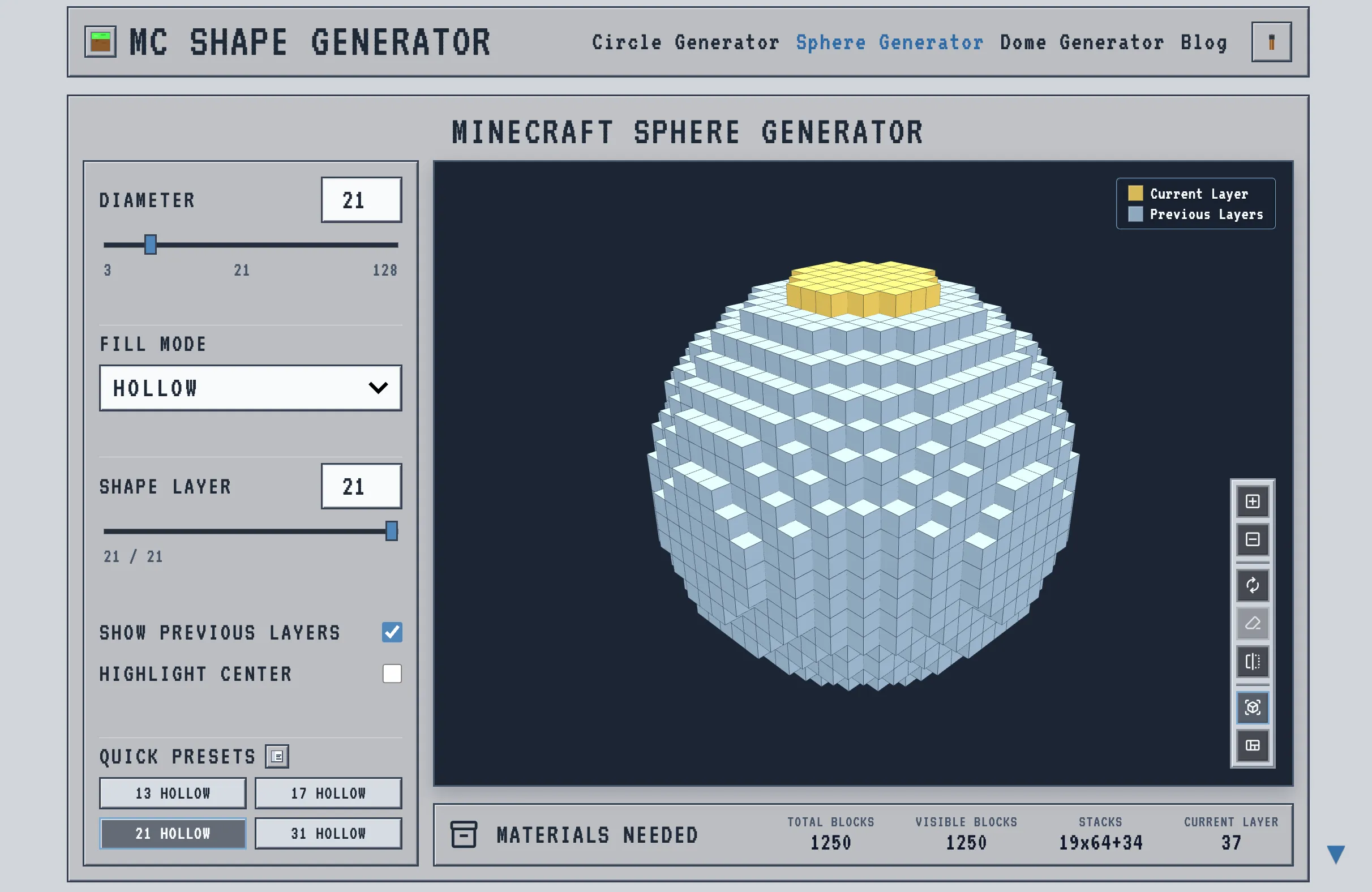
A 5-block sphere is a cube with softened corners. The first diameter that actually reads as round is 13. From there, 21 is the survival sweet spot — clearly spherical, fits a 21×21×21 footprint, and shippable on one resource run. 31 is where the stepping disappears at normal viewing distance.
Set the Diameter slider (or tap a Quick Preset: 13, 17, 21, 31 Hollow) and you’re started. For the full “how it reads / best for” breakdown at every size, the threshold table on the sphere generator page lays it out.
Step 2: Go Hollow Unless It’s Tiny
Switch Fill Mode to Hollow for anything you’ll see inside or pay for block-by-block — observatories, planets, glass shells, base cores. Solid fills the entire volume, and the cost climbs fast with size: roughly 4× the blocks at diameter 21, and past 10× once you’re into 60+ block spheres. Save Solid for small decorations where the difference is trivial.
For the exact Total vs Visible block numbers and how to turn them into a survival haul, the Minecraft sphere block count guide does the math.
Step 3: Place Each Layer With the Ghost-Layer Method
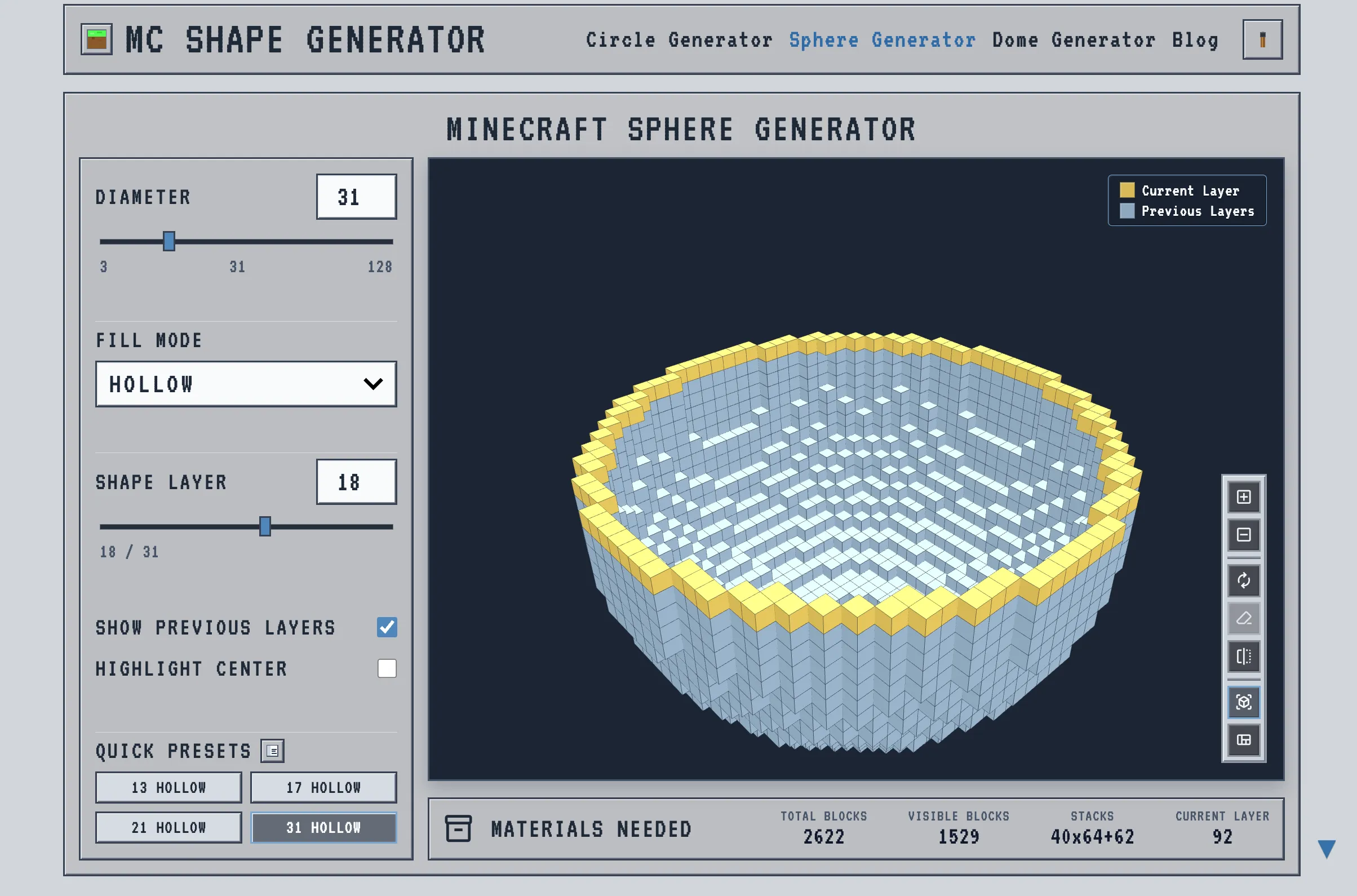
This is the step that kills the teardown. Drag the Shape Layer slider up one notch at a time. The active ring lights up yellow; everything below stays gray and ghosted (keep Show Previous Layers on). That ghost is the whole point — it shows you the exact ring you already built underneath the one you’re about to place, which is the view you actually have in-game.
Four habits make it foolproof:
- Build a quarter, then mirror it. Turn on Highlight Center. On odd diameters there’s a single center block on every layer — use it as a pivot, build one quarter of the ring, then copy it to the other three. A miscount can only ruin a quarter, not the whole ball.
- Switch Perspective vs Orthographic to count. Perspective shows depth (is layer 9 really smaller than layer 8?). Orthographic flattens everything to the same size, which makes counting edge blocks on a curve much easier.
- Check the Current Layer count. The Materials panel shows how many blocks live in the active ring. Hand-count your row; if the numbers disagree, the row is wrong — fix it before you climb higher.
- Toggle the ghost off when it clutters. On big diameters the gray layers crowd the canvas. Flip Show Previous Layers off to read the active ring cleanly, then back on to align.
For the deeper case on building outward from a center marker, the circle center alignment guide applies to every layer of a sphere too.
Turn the Same Sphere Into a Dome, Hemisphere, or Cylinder
A full sphere covers more builds than its name suggests:
- Dome: build only the bottom half and leave the top open. The Minecraft dome generator walkthrough covers previewing the bottom half as an upper roof so the curve still reads correctly.
- Hemisphere: stop at the equator layer (layer 11 on a 21-block sphere) for observatory tops, igloos, and underwater glass.
- Cylinder (workaround): there’s no dedicated cylinder mode, but you can slide to any flat layer of the sphere and repeat that one ring vertically as a tower template. It’s a hack, not a feature — for a true tapered tower, a dedicated modeller fits better.
When You Don’t Need a Generator at All
Honest version, because tool pages never say it: sometimes the generator is overhead.
- Diameters 3–7 are faster to hand-place than to tab over and plan. A tiny shell is a couple of minutes of block-placing — you don’t need a 3D preview for it.
- Creative mode with WorldEdit beats this flat.
//sphereand//hspheregenerate the structure directly in-world; planning a copy-paste you won’t do is wasted effort.
The tool earns its place in survival (no WorldEdit, every block by hand, a 1-block error costs a 30-block teardown) and for creative builders who want to see a sphere before committing — test a diameter, orbit the 3D preview, decide between 21 and 31 before you //sphere it. It does not export .schem or .litematic files; if schematic export is what you need, a different tool fits.
Start Building
Pick a diameter that reads as round, go hollow, and walk the layers from the bottom up with the ghost as your guide.
👉 Open the Minecraft Sphere Generator and place it one layer at a time.